
NestDialog Documentation
A downloadable game
Documentation
1. About
2. Getting started
3. Interface
4. Quickstart
5. Validation
6. Export and JSON structure
7. API Overview and Godot Integration
8. Shortcuts
9. Editor Version Compatibility
10. FAQ
11. License and Usage
______________________________________
1. About
NestDialog is a node-based editor designed to build clean, scalable, and testable dialogue-driven gameplay flows by separating dialogue, choices, conditions, and events into dedicated nodes.
It is completely engine-agnostic and built without relying on any game engine, making it suitable for different runtimes and production pipelines.
This separation keeps dialogue graphs readable and modular, even as complexity grows.
NestDialog includes an internal preview that lets you test your dialogue flows directly in the editor, seeing choices, conditions, and emitted signals in action without exporting or running a game engine.
It also includes a built-in validation layer that checks nodes, paths, variables and signals helping prevent logical errors before runtime.
Dialogues can be exported to a structured JSON format, ready to be consumed by game engines, custom runtime APIs, or via the official Godot API.
2. Getting started
Requirements
- Windows 10/11
Installation
- Download the ZIP package
- Extract to a folder
- Run NestDialog.exe
Demo vs Full Version
- Demo: Free basic version without the Signal Node, limited to 10 nodes. Allows exploring the editor and testing workflows, but does not include full event orchestration.
- Full: Paid version with unlimited nodes, Godot API integration, and a ready-to-use example project. Full support included.
3. Interface
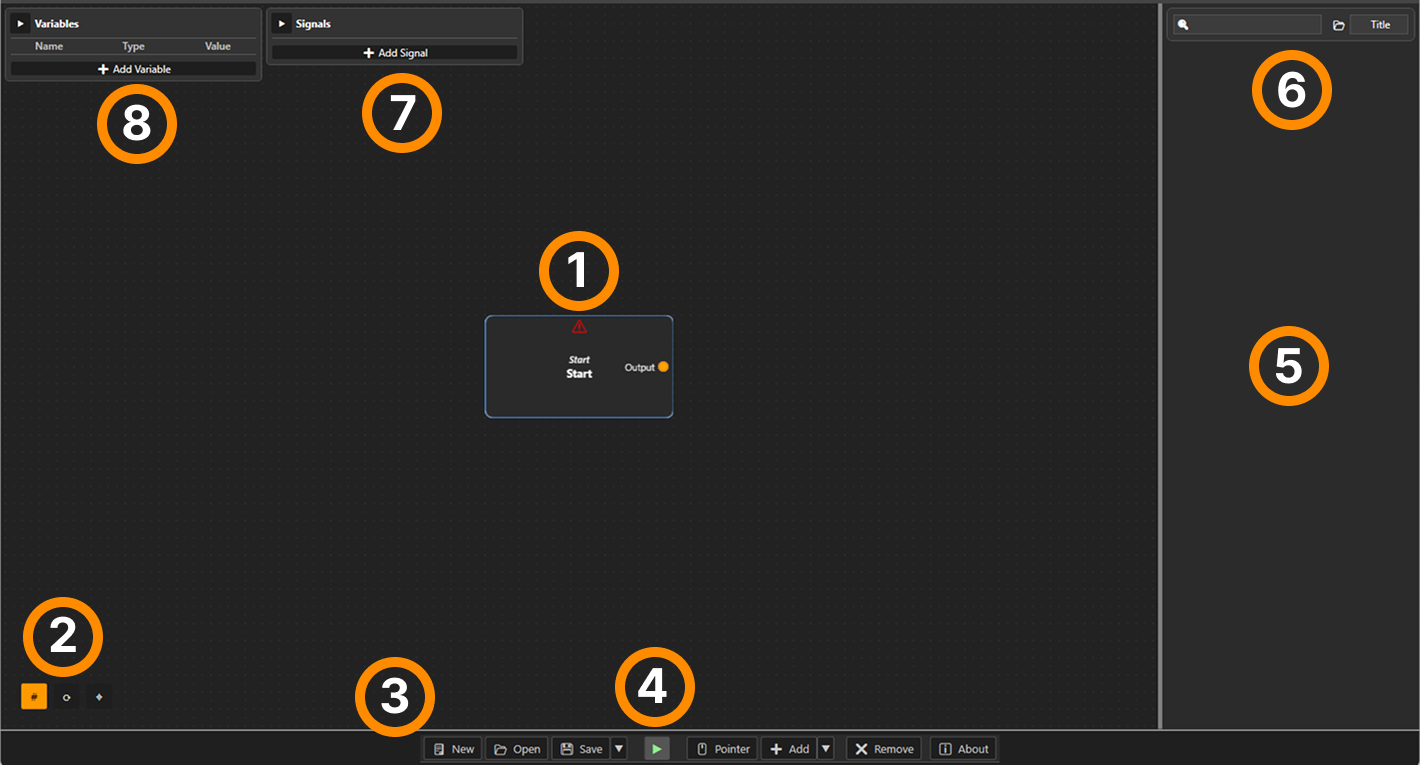
- Canvas - Main area where you build the node flow.
- Grid/Context button - Toggle snap, reset zoom, center the view
- Toolbar - Buttons to create a new project, open/save dialogues and add/remove nodes.
- Dialog Preview - Test the dialogue flow in real-time.
- Inspector Panel - Properties of the selected node: text, variables, conditions etc...
- Search Bar - Quickly search and filter selected nodes by speaker, dialogue text or preview text.
- Signals Context Panel - Manage the project’s global signals.
- Variables Context Panel - Manage the project’s global variables.
Navigation and canvas controls:
- Right-click on the canvas opens the context menu to add nodes.
- Right-click on a node deletes it.
- Middle mouse button pans/moves the canvas.
- Mouse wheel: zoom in/out
- Left-click allows multi-selection of nodes, and Ctrl + Click enables additive selection. The Inspector panel lets you edit multiple nodes at once, showing the combined properties of all selected nodes.
Signals Context Panel:
Define and manage global signals used by Signal Nodes to emit events at runtime.
Each signal acts as a declared event interface between dialogue and the game engine. Signals are declared independently from game logic, allowing the engine to decide how to handle them.
Signals can expose parameters, validated at edit time, to safely pass data from dialogue to gameplay systems. Constant parameter values are local to each Signal Node, while variable parameters reference global variables.
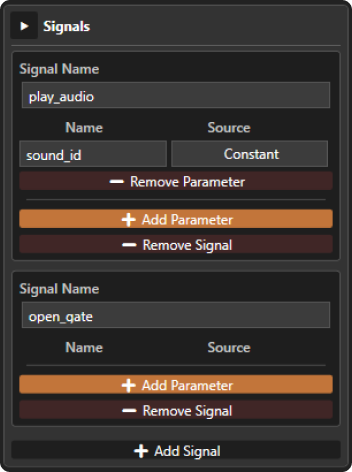
Signal Parameters Declaration
Each signal parameter is defined by:
- a name
- a type (Constant or Variable)
Parameters are declared globally in the Signals Context Panel and become available when adding a Signal Node.
When a Signal Node is added to the graph, you can select one of the declared signals and configure its parameters:
- Constant parameters - a value must be provided locally on the Signal Node. Constant values are scoped to that specific node and cannot be left empty (including empty strings).
- Variable parameters - the parameter is linked to a global variable. Its value is resolved at runtime when the dialogue flow reaches the Signal Node.
This design ensures that signal structure is defined once, while values can be safely provided per node or resolved dynamically at runtime.
Variables Context Panel:
Define and manage global variables used by dialogues and conditions.
Variables are shared across the graph and validated at edit time to prevent runtime errors.
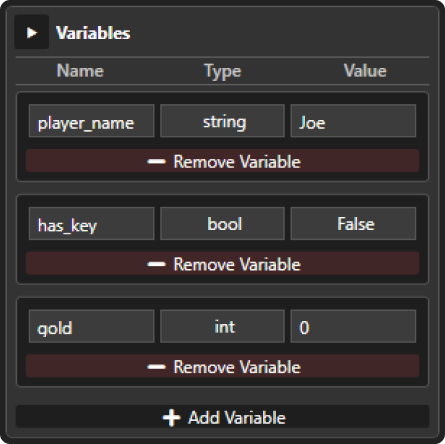
Supported types:
- Integer
- String
- Boolean
Using Placeholders
Placeholders allow you to dynamically insert variable values into dialogue text, speaker or Choice node options.
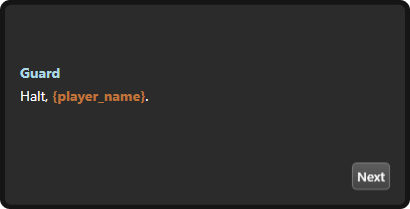
- Reference a global variable by its name using curly braces, example {player_name}
- Placeholders are validated at edit time, ensuring the referenced variable exists.
- In the editor preview, placeholders are shown highlighted but their values are not resolved. This is intentional: the actual value may be set internally at runtime by the game, and the preview shows only the placeholder itself to avoid misleading the developer.
- During game runtime, the placeholder is replaced with the current value of the variable.
Placeholder validation:
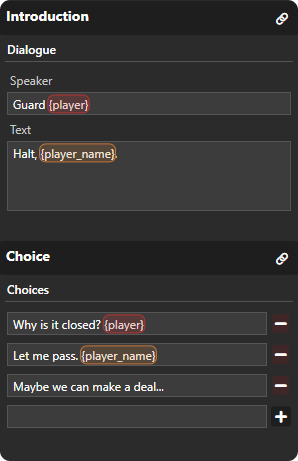
Placeholder highlighted in the editor preview. Values are validated but not resolved until runtime.
4. Quickstart
When you create a new project, a Start node is automatically generated. It can be moved or deleted, but only one Start node is allowed per project. To add more nodes, right-click anywhere on the canvas to open the contextual menu. The available node types are currently: Start, Dialogue, Choice, Condition, Signal and End.
Node Types
- Start – The starting node of the dialogue. There can only be one per project.
- Dialogue – Represents a single line of dialogue, showing the speaker and text.
- Choice – Implements a branching choice, letting the user select one of multiple options.
- Condition – Checks a condition on a global variable and follows the branch depending on whether it evaluates to true or false.
- Signal - Emits a declared signal at runtime, allowing the dialogue flow to trigger events handled by the game engine. No gameplay logic is executed inside the editor.
- End – Marks the end of a conversation. Multiple End nodes can exist in a project.
Core Model & Design Principles
- Nodes are separate functional units: Start is the main node where a dialogue begins, Dialogue represents a single line of dialogue, and End marks the end of a conversation.
- Every conversation must contain at least one Dialogue node.
- Choice nodes extend the logic of a Dialogue by implementing branching options for the user.
- Condition nodes traverse a branch, modifying the flow (e.g., which choices are available in a Dialogue).
- Signal nodes emit runtime events without altering the dialogue flow, enabling dialogue-driven gameplay while keeping game logic external to the editor.
- All nodes in the graph must be connected through their dots, where each dot represents an input or output connection point, and nodes cannot be left unconnected if they are part of a dialogue flow.
For detailed rules and validation of node connections, see the Validation section.
See the screenshot below for an example node with its dots, properties, and connections.
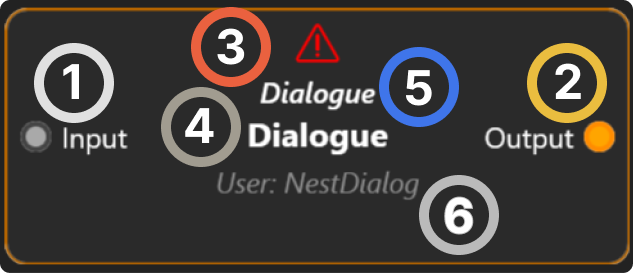
- Input dot - Each node has a single input dot (Start node has none).
- Output dots - Most nodes have one or more output dots. Choice nodes can have multiple outputs, Condition nodes have two: True and False. End nodes have no outputs.
- Invalidation icon - Shows if the node is invalid due to connection, logic, or placeholder issues. Hover displays a tooltip with the error description.
- Node title - Descriptive string, e.g., Introduction, Epilogue. Helps identify the node quickly and can be used for future editor features.
- Node type - Displays the node type.
- Logic preview - Shows a textual preview of the node’s logic.
Built-in Dialogue Preview
The built-in dialogue preview lets you test the conversation flow in real time. While in preview mode, editing interactions are locked, allowing you to simulate dialogue progression and identify logical issues before export.

The Play button is only enabled when the dialogue graph is consistent and free of errors, ensuring you can preview only valid conversations. If no node is selected, the conversation starts from the Start node and can only begin from Dialogue nodes. If multiple nodes are selected, the preview begins from the first selected node.
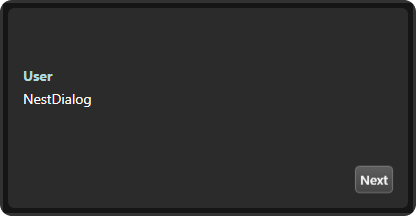
In preview: Next buttons or choice options appear to progress the conversation. The current node is highlighted in blue. Editing is disabled during preview (read-only mode), but you can still navigate the graph using pan and zoom.
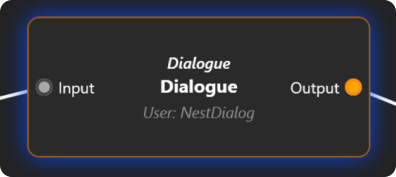
Event preview: Signals declared in the Signals Context Panel are emitted in real time during preview. You can see which events are triggered and the values of their parameters, allowing you to validate dialogue and event flows before runtime.
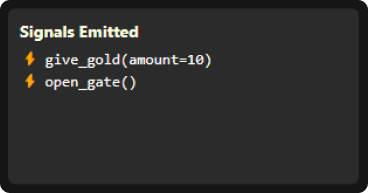
Triggered nodes are highlighted in yellow, and you can see the values of all signal parameters, allowing you to validate both dialogue and event flows before runtime.
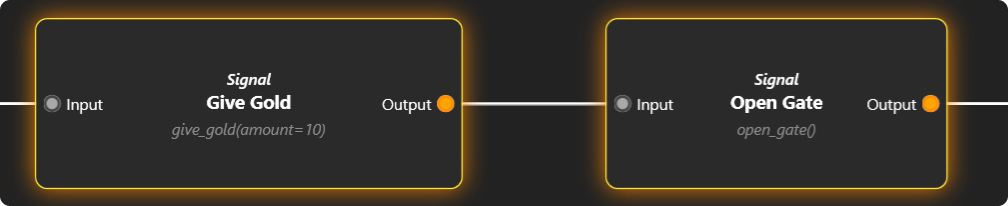
Note that dialogues no longer end automatically at End nodes during preview, giving you full control to step through the conversation and observe signal interactions.
5. Validation
NestDialog applies a strict validation layer to ensure dialogue graphs are logically correct and safe to run at runtime.
Validation is performed continuously while editing. Dialogue preview is only available when the graph has no validation errors. Projects can be saved even if errors are present. A diagnostic flag is included in the exported JSON as a hint about the graph’s validity at the time of saving - see the JSON section for full details.
Conversation structure
- Have exactly one Start node
- Reach at least one End node
- Contain at least one Dialogue node between Start and End
Disconnected or incomplete paths are considered invalid.
Connections
- All nodes must be connected through their dots. Each dot represents a single. connection point and can be connected to only one other dot.
- Input and output dots cannot be left unconnected.
- Infinite loops are not allowed.
Logical flow rules
- Choice nodes cannot directly follow another Choice node.
- A Choice must always be preceded by a Dialogue node.
- A Choice can be preceded by a Condition only if that Condition originates from a Dialogue.
- Illogical graphs (valid connections but invalid dialogue flow) are rejected.
Node-specific validation
- Dialogue nodes are invalid if Speaker or Text is empty, or if a placeholder used in either field references a non-existent global variable.
- Choice nodes are invalid if their input is not a Dialogue or a valid Condition branching from a Dialogue, or if any placeholder in a Choice option references a non-existent global variable.
- Condition nodes are invalid if no variable is selected, the comparison value is missing, or the comparison value is incompatible with the variable type (incompatible values are highlighted directly in the inspector)
- Signal nodes are considered invalid when no signal is selected or a constant parameter has no value.
6. Export and JSON structure
The Save button exports the dialogue graph to a structured JSON file.
This file serves both as the editor project format and as a runtime-ready asset that can be loaded directly by a game engine.
Because the editor writes directly to the JSON file, projects can be stored inside a game’s folder and updated live without requiring a separate export step.
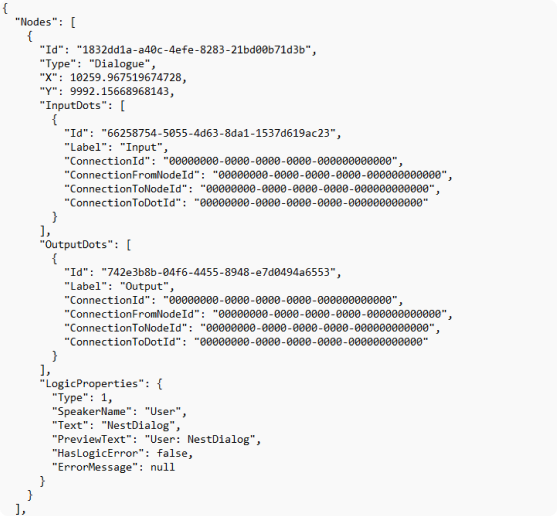
The JSON is centered around nodes.
Each node has a unique identifier, a type, a position, and a set of input and output dots.
Dots define the connections between nodes and are represented explicitly to preserve graph structure and validation.
Nodes that contain node-specific data expose it through the LogicProperties section.
For example, Dialogue nodes store speaker and text, while Condition nodes store comparison rules and values.
Nodes that do not require additional logic (such as Start or End) omit this data.
The file also includes global variables and declared signals. Signals are listed similarly to variables and can be referenced by Signal Nodes in the graph.
Metadata provides authorship and versioning information and is intended for traceability rather than runtime logic.
The "WasValidAtSave" flag indicates whether the graph was considered valid at the time of saving.
It is provided as a diagnostic hint and should not replace runtime validation.
This JSON format is designed to be stable, engine-agnostic, and consumed programmatically.
Manual modification is possible, but unsafe unless you fully understand the dialogue graph rules.
7. API Overview and Godot Integration
NestDialog includes a runtime API for Godot that works directly with the editor. It allows dialogues created in NestDialog, as well as signals emitted by Signal Nodes, to be integrated into projects with minimal setup.
The API consists of a small set of simple calls, giving flexibility to build custom dialogue and event-driven systems. The included example project shows a practical way to use the editor and API together in a Godot project and can serve as a reference for integration or be reused in your games.
For more details, refer to the documentation included with the package.
8. Shortcut
| Action | Shortcut |
| New Project | Ctrl + N |
| Save Project | Ctrl + S |
| Save Project As | Ctrl + Shift + S |
| Open Project | Ctrl + O |
| Select All Nodes | Ctrl + A |
| Pointer Mode | Esc |
| Center View on All Nodes | F |
| Select / Drag / Multi-Select | Left Mouse Button |
| Add Node (Context Menu) / Delete Node / Delete Connection | Right Mouse Button |
| Panning | Middle Mouse Button |
| Zoom | Mouse Wheel |
| Play / Stop Preview | Space |
| Additive Select | Ctrl + Left Mouse Button |
| Quick Insert Node | 1, 2, 3... |
9. Editor Version Compatibility
Project compatibility between different NestDialog editor versions:
NestDialog Editor 0.1.0:
Projects saved with schema 1.1.0 (from Editor 0.2.0) cannot be opened. Attempting to do so may cause the editor to crash.
NestDialog Editor 0.2.0:
Performs a version check when opening a project. If the project schema is not compatible (e.g., older 1.0.0), a clear incompatibility message is shown.
Manual migration of JSON from 1.0.0 to 1.1.0 allows opening in Editor 0.2.0 safely.
Note: NestDialog validates the JSON structure, so projects are incompatible if the structure doesn’t match, regardless of the version number in the file. Currently, the tool is still in active development, so version mismatches like the one described above can occur.
Recommendations:
- Always backup your projects before upgrading.
- Use Editor 0.2.0 for projects saved with the new schema (1.1.0).
Future Compatibility:
Upcoming updates will introduce a compatibility layer to reduce version friction. No similar breaking changes are planned.
10. FAQ
1. Is NestDialog compatible with any game engine?
Yes, it exports dialogues as JSON that can be used in any engine that can parse it.
2. Can I preview dialogues with errors?
No, preview is only available if the graph has no validation errors.
3. What’s the difference between the demo and full version?
The demo is free, limited to 10 nodes, and does not include the Signal Node or support. The full version is paid, offers unlimited nodes, includes the Signal Node, comes with support, a ready-to-use Godot API, and a sample project demonstrating how to use the editor and Signal Node.
4. Can I edit my project while it’s linked to the engine?
Yes, saving the project updates the JSON, which the engine can read directly.
5. What types of nodes are available?
Currently available node types: Start, Dialogue, Choice, Condition, Signal and End. Future updates will include additional nodes such as a Set node.
6. How can I report bugs or send feedback?
Please contact me at lucysandboxsoftware@gmail.com with any bugs or feedback.
11. License and Usage
You may use this software to create your own dialogues and sell them. If you publish the files generated by the software online, you must give credit and link to my site. Screenshots, videos, and reviews are welcome and appreciated.
If anyone develops an API for this software, it may be distributed only if credit is given, it is free to use, and it cannot be sold or used to redistribute the software itself. Commercial use or resale of NestDialog, including its API, is strictly prohibited.
Please be courteous and respect my work.
Leave a comment
Log in with itch.io to leave a comment.